🎨 Change App Theme
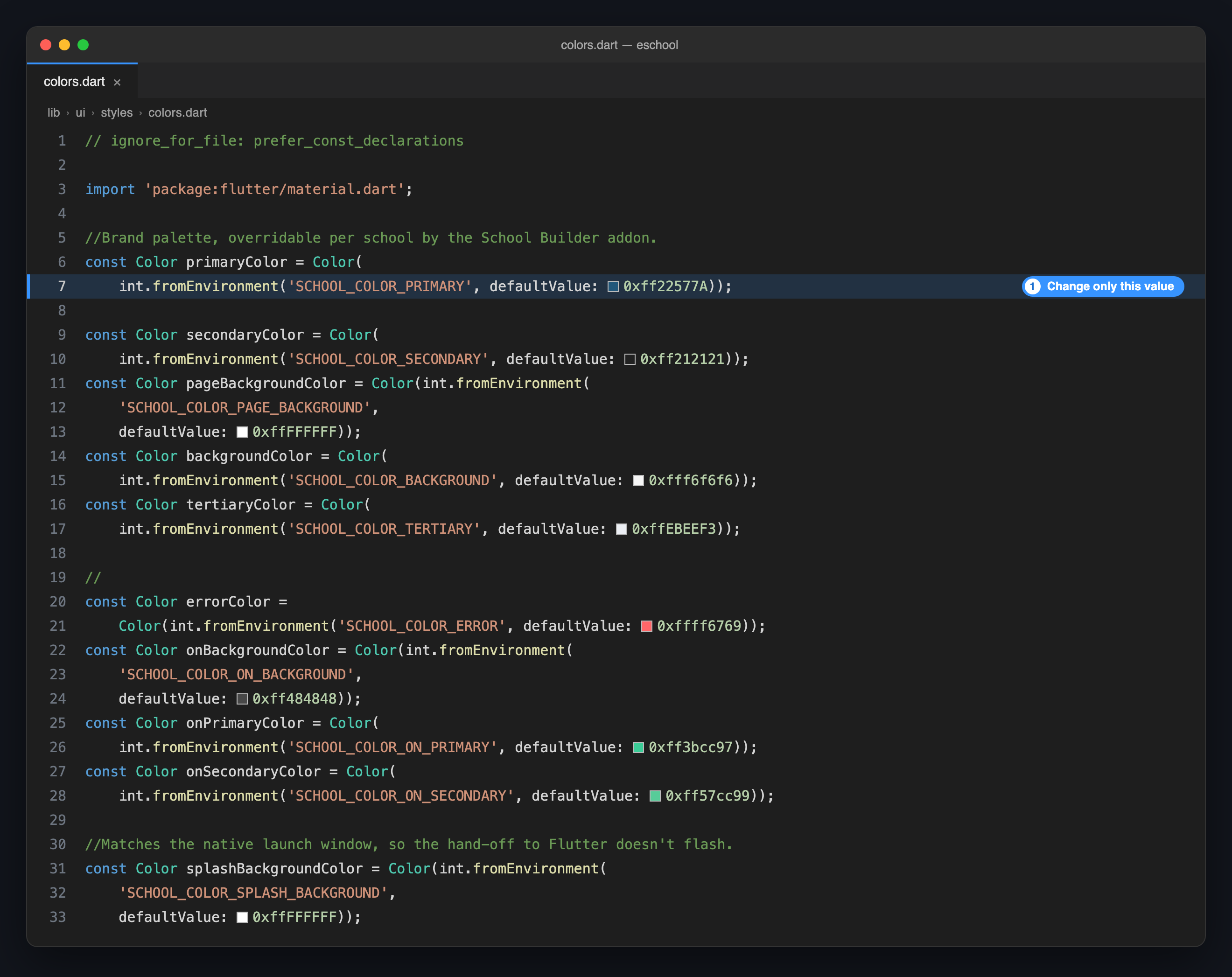
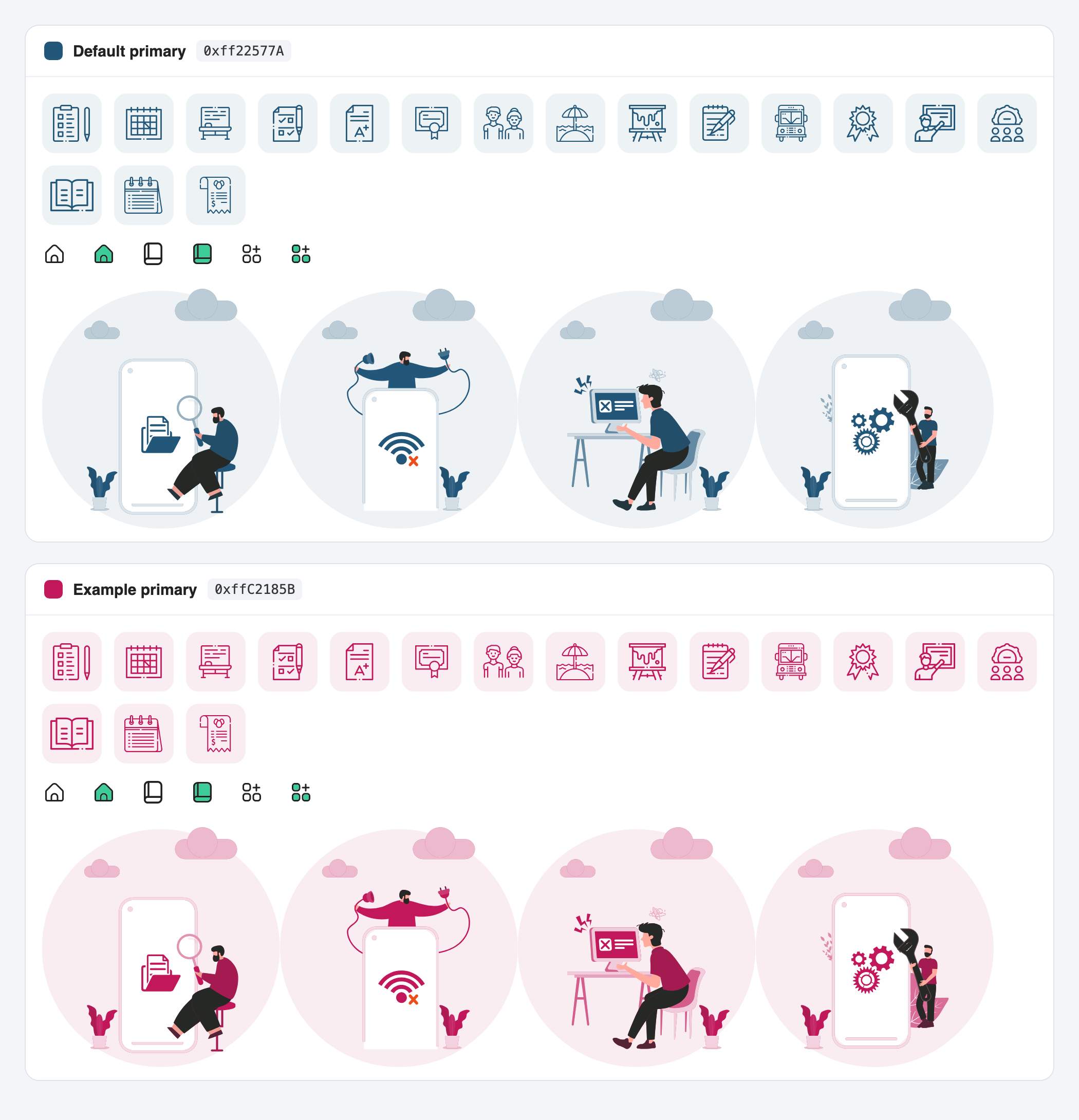
Each app keeps its theme colours in one file, lib/ui/styles/colors.dart. Change a colour there and every screen that uses it follows, including the menu icons and the illustrations.
🔄 Steps to Change the Colours
1️⃣ Open the Colours File
Go to lib/ui/styles/colors.dart in the app you want to change.
2️⃣ Replace the Colour Values
Each colour has a defaultValue. Replace only that value:
- Student/Parent app
- Staff/Teacher app
const Color primaryColor = Color(
    int.fromEnvironment('SCHOOL_COLOR_PRIMARY', defaultValue: 0xff22577A));
Color primaryColor = const Color(
  int.fromEnvironment('SCHOOL_COLOR_PRIMARY', defaultValue: 0xff29638A),
);
A colour is written as 0xff followed by its six-digit hex code:
| Your colour | Write it as |
|---|---|
#22577A | 0xff22577A |
#C2185B | 0xffC2185B |
defaultValueKeep the names in quotes, such as 'SCHOOL_COLOR_PRIMARY', exactly as they are. The Dedicated School Mobile App add-on uses them to give each school its own colours.
3️⃣ Run the App Again
Stop the app and run it again. The colours are built into the app, so a hot reload does not show them.
flutter run
🎨 What Each Colour Controls
- Student/Parent app
- Staff/Teacher app
| Colour | Default | Where you see it |
|---|---|---|
primaryColor | #22577A | The main brand colour: top bars, buttons, menu icons and illustrations. |
secondaryColor | #212121 | Main text, titles and the bottom navigation icons. |
pageBackgroundColor | #FFFFFF | The background of every screen. |
backgroundColor | #F6F6F6 | Cards, panels and input fields. |
tertiaryColor | #EBEEF3 | Borders and light fills. |
errorColor | #FF6769 | Error messages and failed states. |
onBackgroundColor | #484848 | Secondary text and divider lines. |
onPrimaryColor | #3BCC97 | The accent: the selected bottom navigation icon and the shapes on the login screens. |
onSecondaryColor | #57CC99 | Light accent tints. |
splashBackgroundColor | #FFFFFF | The background of the splash screen. |
| Colour | Default | Where you see it |
|---|---|---|
primaryColor | #29638A | The main brand colour: top bars, buttons, menu icons and illustrations. |
secondaryColor | #1A1C1D | Main text, titles and the bottom navigation icons. |
pageBackgroundColor | #F7F9FF | The background of every screen. |
backgroundColor | #FFFFFF | Cards, panels and input fields. |
errorColor | #BA1A1A | Error messages and failed states. |
tertiaryColor | #EBEEF3 | Borders. |
Icons and Illustrations Follow the Primary Colour
You do not need to recolour any image. The menu icons, their tinted tiles and the illustrations on the empty, error and maintenance screens are painted in your primary colour when the app runs:
📌 Colours Set Outside This File
| What | Where to change it |
|---|---|
| Notification colour (Android) | notification_color in android/app/src/main/res/values/colors.xml. Set it to your primary colour. |
| App icon | See Change App Logo & Assets. |
| Launch screen | The first screen, shown before the app's own splash: launch_background.xml on Android and LaunchScreen.storyboard on iOS. In the Student/Parent app, keep its background the same as splashBackgroundColor, or the screen flashes between the two. |
🏫 Building Apps for Several Schools?
With the Dedicated School Mobile App add-on, each school sets its own colours in the builder and no file is edited. The values in colors.dart are the defaults that a school inherits for any colour it leaves empty. See Add a School.
📝 Notes
- Pick a primary colour dark enough for white text. Buttons and top bars put white text on it.
- Keep the accent different from the primary. In the Student/Parent app,
onPrimaryColormarks the selected tab, so it has to stand out. - Change both apps. The Student/Parent app and the Staff/Teacher app each have their own
colors.dart. - Check the real screens. After changing colours, open the login screen, the home screen, a list and an error screen before you publish.